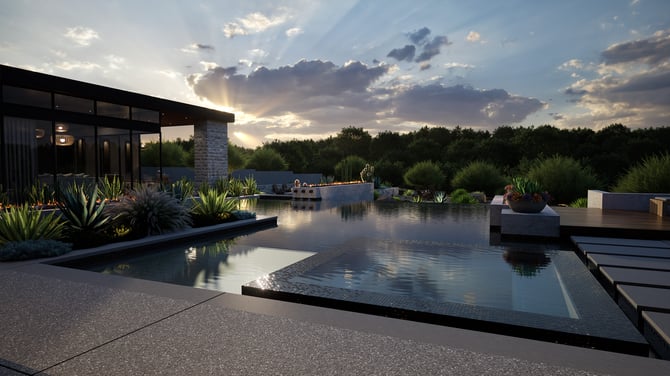
Advanced Lighting Tutorial 🎥
Sky (Dynamic)
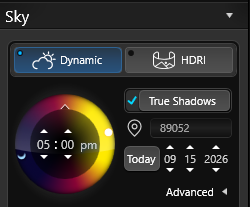 True Shadows: Check this box for the sun to rise and set at real-world times and locations based on your client’s address.
-
Add the client’s address when you create the file or click on Location to open the project information screen to add the address to existing files.
Date: Set a specific date and time to show your client how their project will look on, for example, a December afternoon vs. a July morning.
Location: This field will display the zip code or latitude/longitude of the location entered in Project Information.
NOTE: With True Shadows On, you cannot rotate the sun as it’s using the real-world location. To quickly turn True Shadows On/Off, press “Shift + N”.
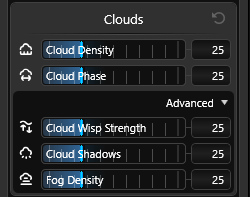
Cloud Density: This control allows you to adjust the number of clouds in the sky. You can choose from a range of options, from clear skies with no clouds, to partially cloudy conditions, to almost completely overcast skies.
Cloud Phase: This control adds variation to the arrangement of clouds in the sky, creating a more dynamic and realistic effect.
Advanced 🔽
Cloud Wisp Strength: Cloud Wisp Strength controls the visibility of the wispy clouds in the upper atmosphere.
Cloud Shadows: Adjust the shadow darkness of the clouds to create a realistic effect. However, keep in mind that full darkness may conflict with specific areas of your design that you want to highlight.
Fog Density: Adds atmospheric haze to create depth. A setting around 20 adds a natural feel without obscuring your design.
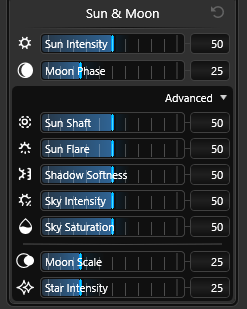
Sun Intensity: Controls overall sunlight intensity. Small changes make a big difference.
Moon Phase: Change the moon's phase from full moon to crescent.
Advanced 🔽
Sun Shaft: Creates visible sun rays (god rays). Use sparingly for dramatic effect.
Sun Flare: Controls flare size and intensity from the sun only. Use higher values when the sun is near the camera view to enhance natural photo contrast.
Shadow Softness: Controls how sharp or blurred shadow edges appear. Softer shadows work well on overcast days; harder shadows suit bright, sunny scenes.
Sky Intensity: Adjusts how strongly the sky affects overall scene contrast and shadow depth.
Sky Saturation: Controls the richness of sky colors. Lower values produce a more muted sky.
Moon Scale: Makes the moon appear larger or smaller in the scene.
Star Intensity: Adjust the brightness of the stars in the sky.
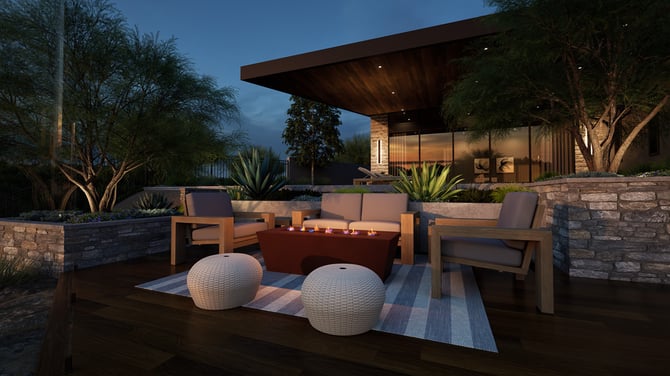
Sky (HDRI)
An HDRI sky uses a high-resolution 360° photo to light your entire scene. It's ideal for achieving a specific mood or look quickly. Browse HDRI options in the Library to find the right one for your presentation.
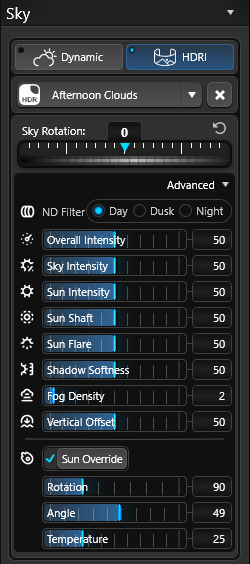
Sky Rotation: Rotates the HDRI image so the light source hits your scene from the angle you want.
Advanced 🔽
ND Filter: Dims the HDRI like a neutral density filter on a camera lens — useful if the sky is too bright without changing its color.
Overall Intensity: Controls the total brightness of the HDRI lighting.
Sky Intensity: Fine-tunes how much contrast and shadow depth the sky contributes.
Sun Intensity: Controls overall sunlight intensity. Small changes make a big difference.
Sun Shaft: Sets the volume of sun rays for added depth.
Sun Flare: Controls flare size and intensity from the sun only. Use higher values when the sun is near the camera view to enhance natural photo contrast.
Shadow Softness: Blurs or sharpens shadow edges. Match this to the mood of your HDRI (e.g., softer for overcast skies).
Fog Density: Adjust to add atmosphere and depth. Lower settings keep details visible; around 20 adds subtle distance without hiding the background.
Vertical Offset: Moves the HDRI up or down, useful if the horizon line doesn't align with your scene.
Sun Override: Override HDRI default to adjust sun placement.
-
Rotation: Adjust rotation of sun.
-
Angle: Adjust angle of sun.
-
Temperature: Adjust color temperature of sun.
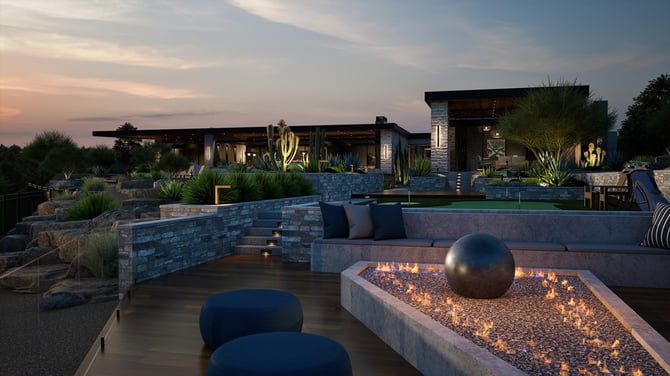
Camera
Add another level of professionalism to your photos and videos with exclusive camera controls.
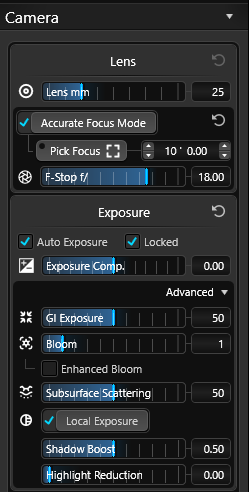
Camera Lens mm: This slider allows you to choose between a focal lens of 15mm and 150mm. Fine tune in your desired lens by typing in your own value between 15 and 150.
Accurate Focus Mode: To achieve precise focus, enable the accurate focus mode and choose the specific area you want to focus on. Adjusting the F-stop will control the amount of blur in the areas that are not selected.
Exposure
Auto Exposure: Set camera exposure automatically. This keeps everything in a balanced range. Think of Auto Exposure like Auto on a point-and-shoot camera. When ON, it does its best to keep everything properly exposed.
Locked: Lock exposure of scene. This setting prevents it from fluctuating as you move into darker or lighter areas.
Exposure Compensation: This control allows you to adjust the brightness of the scene, making it either lighter or darker.
Advanced 🔽
GI Exposure: (Only available in non-path tracing) Adjusts how bright indirect (bounced) light appears inside shaded areas and interiors.
Bloom: Adjust the level of luminosity that brightly lit objects appear to emit. When the bloom slider is set to 10, items in direct sunlight will have a significant glow. It is recommended to keep this setting low or none for most images.
Enhanced Bloom: Enhanced bloom can give an image a dream-like quality often seen in movies. Use intentionally, can slow down 3D designs when lots of lights visible.
Subsurface Scattering: This controls how light transmits through semi-transparent objects like foliage.
Local Exposure: Adjusts brightness in specific areas of the scene without affecting the whole image.
Shadow Boost: Deepens localized shadows for added contrast and definition.
Highlight Reduction: Deepens localized shadows for added contrast and definition.
TIP: To save your camera settings with a specific photo location in Presentation mode, simply click on the Camera Pin located on the Photo Thumbnail. This will update the Location Slot with the new settings. Press the P key to capture the photo.
At any time you can set your Camera back to the Default Settings by clicking the Reset button.
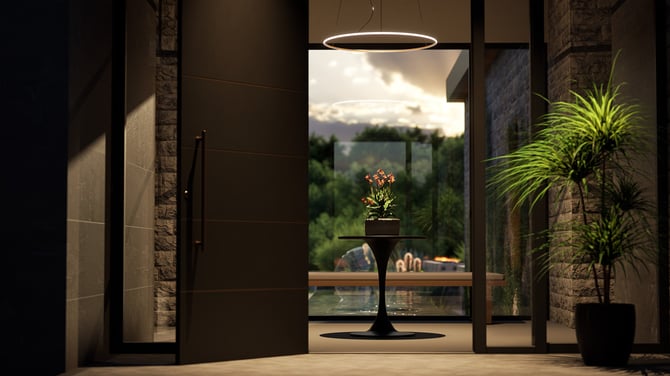
Color Grading
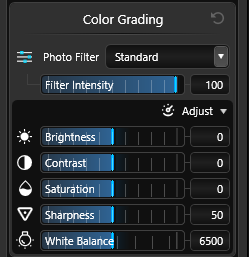
Filter: The drop down has a variety of filter options to choose from. For example: select Vibrant to bring out stronger colors or Black and White to remove color.
Filter Intensity: Adjust the strength of the filter with the Filter Intensity Slider.
Brightness: Lightens or darkens the entire image. Range: -50 to 50. At -50 the image is black; at 50 it's white.
Contrast: Increases or decreases the difference between light and dark areas. Higher contrast creates a bold, punchy look; lower contrast produces a flatter, softer image.
Saturation: Makes colors more vivid (increase) or more muted (decrease). Reducing saturation can give a sophisticated, neutral tone.
Sharpness: Adds edge definition to the image. Use sparingly — too much can look artificial.
White Balance: Shifts the overall color temperature of the scene warmer (orange) or cooler (blue). Useful for correcting the look of indoor or overcast lighting.
Effects
Add an artistic flare to your designs and make them stand out with the addition of unique and visually appealing effects. These effects can be applied to your scenes to create a specific artistic style that adds a touch of creativity to your designs.
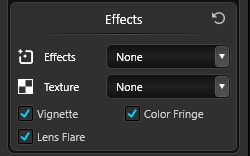 Effects: These can be applied to your scenes to create a specific artistic style that adds a touch of creativity to your designs. None is the default 3D look.
Texture: Each texture adds a unique overlay to enhance the style. For example, the Watercolor texture adds brush strokes resembling watercolor painting over an image.
Vignette: Adds a subtle dark border around the viewport, enhancing the focus on the central design and creating a sense of depth.Environment
Lights & Windows
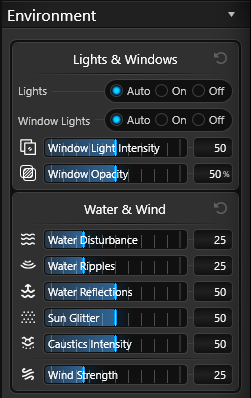 Lights: Auto - Lights on at night, off during day. On - Lights always on. Off - Lights always off.
Window Lights: Auto - Window lights on at night, off during day. On - Window lights always on. Off - Window lights always off.
Window Light Intensity: You can control the brightness of the window lights to achieve the desired effect.
Window Opacity: This control allows you to determine how reflective the windows on a house shape appear.
The opacity setting also directly affects the window light intensity, meaning that the higher the opacity, the greater the intensity of the window lights.
Water & Wind:
Water Disturbance: Sets how much the pool or spa surface moves. At 0, the water is completely still and mirror-like. Higher values add realistic water agitation.
Water Ripples: This setting adjusts the strength of the dynamic water ripples from water objects, such as spillovers.
Water Reflections: Adjust intensity of water reflections.
Sun Glitter: Adjust intensity of sparkle from sun on water ripples.
Caustics Intensity: Adjust intensity of water caustics.
Wind Strength: Adjust strength of wind on water and trees.
TIP: Set Water disturbance to 0, and then add wind strength 50 to create gentle movement on a calm water surface.