
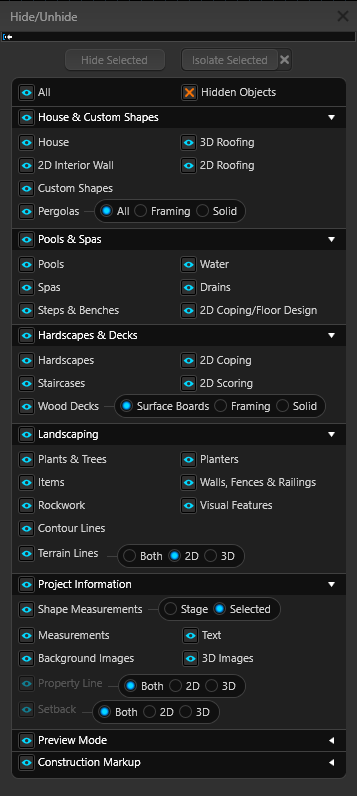
 Use the Hide/Unhide buttons at the top to control visibility for the entire design. The Stage and Object checkboxes let you hide objects by type, and the Project Information controls determine which measurements are displayed.
In Construction Page Layout, each block can use its own Hide/Unhide settings. When you print, whatever is visible in your viewport is exactly what will appear on the page. Hide/Unhide gives you precise control over which objects and measurements are included on your printed plans.
Blue Eye: All items of that type are visible
Red X: All items of that type are hidden
Blue Square: Only some items of that type are hidden
Hide/Unhide Buttons
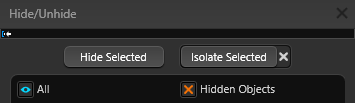
Hide Selected: Hide only the object or group of objects you currently have selected.
All: Hide every object in the design, or unhide all objects that are currently hidden.
Hidden Objects: Show all objects that are currently hidden.
Isolate Selected: Show only your current selection and temporarily hide everything else in the project.
Stages & Objects
Click the white arrow to the right of the category name to collapse or expand the category.
 House & Custom Shapes Category
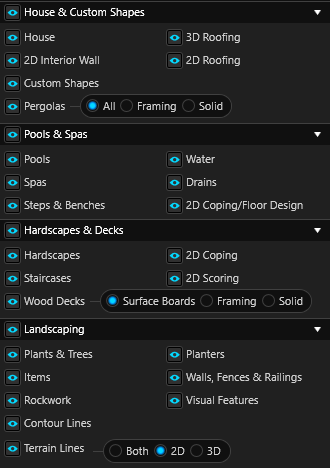
Hide all shapes from the House and Custom Shape & Pergola categories.
-
House: Hide all house shapes drawn in the House Stage.
-
2D Interior Wall: Hide interior wall lines for houses in 2D view.
-
3D Roofing: Hide all roofs in 3D view.
-
2D Roofing: Hide all roof lines in 2D view.
-
Custom Shapes: Hide all custom shapes drawn in the Custom Shapes & Pergola Stage.
-
Pergolas: Hide all pergolas drawn in the Custom Shapes & Pergola Stage, then choose All, Framing, or Solid to control how they appear in 2D.
Pools & Spas Category
Hide all content from the Pools, Spas and Steps & Benches categories.
-
Pools: Hide all pool shapes drawn in the Pools Stage.
-
Spas: Hide all spa shapes drawn in the Spas & Water Features Stage.
-
Steps & Benches: Hide all steps and benches inside the pools and spas in the design.
-
Water: Hide the pool and spa water while you are working in the design.
-
Drains: Hide all drain objects placed from the Library.
-
2D Coping/Floor Design: Hide coping and floor design lines in 2D view.
Hardscapes & Decks Category
Hide all content from the Hardscape & Decks category.
-
Hardscapes: Hide all hardscape shapes drawn in the Hardscape & Decks Stage.
-
Staircases: Hide all shapes created with the Staircase tool.
-
2D Coping: Hide coping lines on hardscapes in 2D view.
-
2D Scoring: Hide scoring lines on hardscapes in 2D view.
-
Wood Decks: Hide all wood decks drawn in the Hardscapes & Decks Stage. Then choose Surface Boards, Framing, or Solid to control how they appear in 2D.
Landscaping Category
Hide all content from the Landscaping category.
-
Plants & Trees: Hide all landscaping objects placed from the Landscaping tab in the Library.
-
Items: Hide all items placed from the Items tab in the Library.
-
Rockwork: Hide all rockwork placed from the Items tab in the Library.
-
Planters: Hide all planter shapes drawn in the Planters Stage.
-
Walls, Fences & Railings: Hide all shapes drawn in the Walls and Fences Stage.
-
Visual Features: Hide all visual feature objects, including spillovers, negative edges, and any items in the Visual Features category in the Library.
-
Contour Lines: Hide all contour lines. These appear in 2D and show terrain changes created with the Multiple Slopes option and 3D terrain tools.
-
Terrain Lines: Hide all terrain lines, including the line showing the overall property slope in 2D, lines from the Single Slope option, and lines drawn with the Multiple Slopes option. Note: These lines are hidden by default on every stage except the Terrain Stage.
Project Information Category
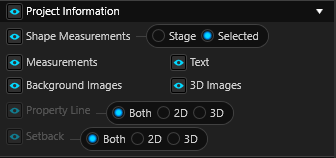
Hide all content from Guides and Measurements.
-
Shape Measurements: Hide all measurements, then choose how you want them to display using Stage Measurements or Selected Measurements.
-
Stage: Show measurements only for objects drawn on the current stage.
-
Selected: Show measurements only for the objects you have selected.
-
-
Measurements: Hide all tape measures and rectangle or circle guides.
-
Text: Hide all text, notes and callouts
-
Background Images: Hide all imported background images.
-
GIS Background Image: Hide the imported GIS image.
-
3D Images: Hide all imported 3D images.
-
Property Line: Hide all property lines drawn in Stage 1: Project Information, then choose whether to display them in 2D, 3D, or both.
-
Setback: Hide all setbacks defined in Stage 1: Project Information, then choose whether to display them in 2D, 3D, or both.
Preview Mode & Construction Markup
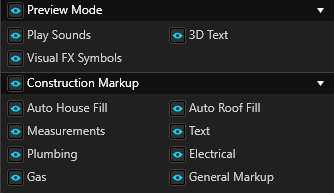
Preview Mode Category
Hide all content from the Preview Mode Category.
-
Play Sounds: Mute all sounds in 3D, including sound objects and water features. Sounds will still be audible in rendered videos.
-
Visual FX Symbols: Hide all 3D markers used for staging lights, sound bubbles, and effects.
-
3D Text: Hide all text in 3D view.
Construction Markup Category
Hide all measurements, text, and shapes created in the Construction Markup Stage.
-
Auto House Fill: Hide the automatic house fill layer.
-
Auto Roof Fill: Hide the automatic roof fill layer.
-
Measurements: Hide the measurements layer.
-
Text: Hide the text layer.
-
Plumbing: Hide the plumbing markup layer.
-
Electrical: Hide the electrical markup layer.
-
Gas: Hide the gas markup layer.
-
General Markup: Hide the general markup layer.