
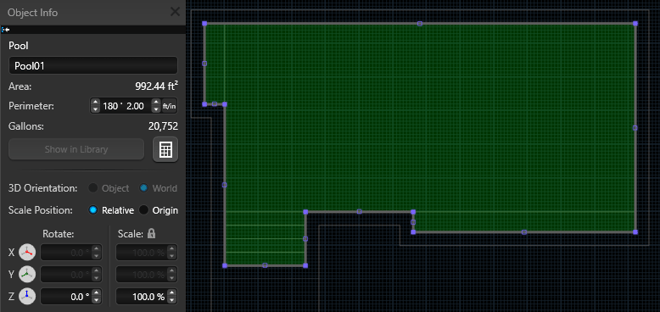
Type: Shows the type of the currently selected object. For Library objects, it displays the category and group. For a selected group, the type will be “Group.” When multiple items are selected, this field displays the total number of selected objects.
Name: Enter a custom name for the currently selected object.
Area: Displays the surface area of the selected object, when applicable.
Coping Area: Displays the coping area of the selected object, when applicable.
Total Area: Displays the sum of Area and Coping Area for the selected object, when applicable.
Perimeter: Displays the perimeter length of the selected object, when applicable.
Gallons: Displays the water volume, in gallons, of the selected pool or spa. Note: Available in Pool Studio and Vip3D only.
Perimeter & Calculate
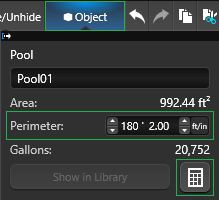
Perimeter: Adjust the overall size of a selected shape by editing its perimeter value. Any linked Steps & Benches inside a pool or spa will scale automatically with the change.
Calculator: When you first create or modify a shape, its area and perimeter fields will show 0. Hover over the Calculator button to highlight the shape in green and see exactly what will be measured.
Left‑click the Calculator to compute the area, perimeter, and other measurement details for the currently selected object. You can also calculate measurements for multiple selected items at once.
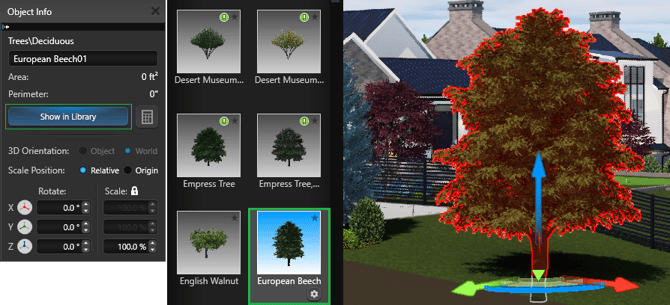
Show In Library
Click this button to locate the selected item, plant, tree, or material in the Library and automatically load its category.
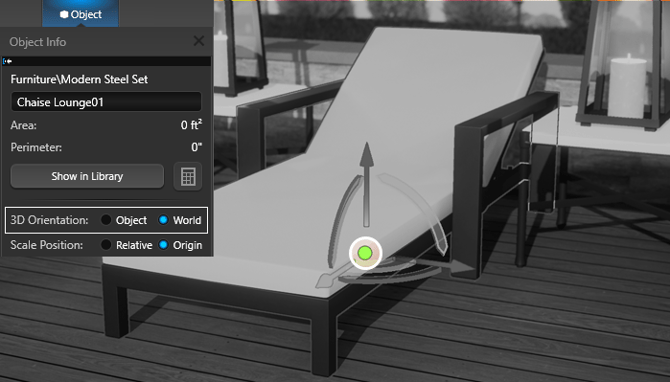
3D Orientation
When the Rotate Tool is active, the Alignment button (shown as a globe or cube) at the center of the 3D Gizmo lets you change the orientation of the arrows.
You can adjust this alignment only while the Rotate Tool is active—left‑click the button to switch the setting.
Scale Position
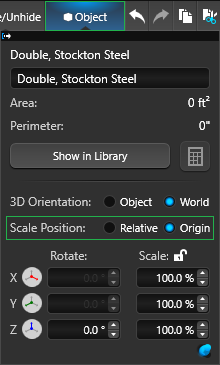
Scale Position allows you to choose between Relative or Origin when you need to resize objects.
Relative: Scale objects relative to the current selection. (Shift + E)
Use Relative to resize and reposition a group of objects together—for example, scaling a slide and its surrounding rockwork as a single set.
Origin: Scale objects from a fixed origin point. (Shift + E)
Use Origin to resize multiple items at once without changing their relative positions—ideal for uniformly scaling a row of bushes or similar elements.
Rotation
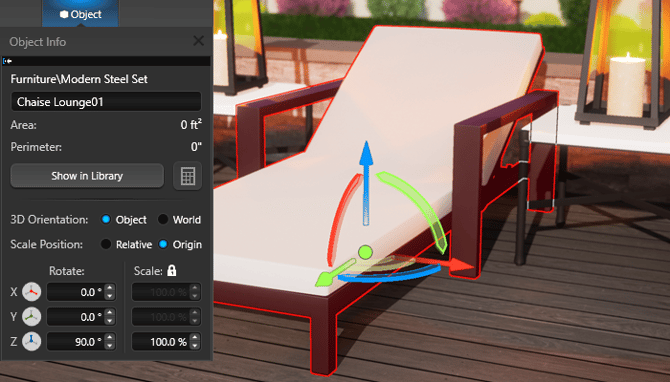
Enter a numeric value to rotate an object around the X, Y, or Z axis. For example, to rotate an object 90 degrees, type 90 in the rotation field or use the up and down arrows.
In 2D, the Z axis represents the view axis, and all shapes can be rotated around Z. Custom Shapes and Library items can also be rotated around the X and Y axes.
3D Gizmo
-
X Axis = Red Arrow
-
Y Axis = Green Arrow
-
Z Axis = Blue Arrow
Scale
The Scale Tool applies a single scale factor to resize an object uniformly in all directions.
Scale: Enter a value to scale the object uniformly. For example, to make an object half its current size, enter 50 to scale it to 50%. You can also use the up and down arrows to increase or decrease the scale.
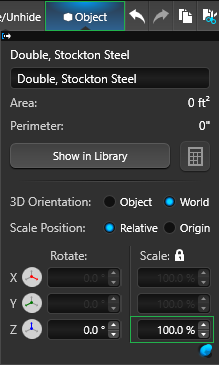
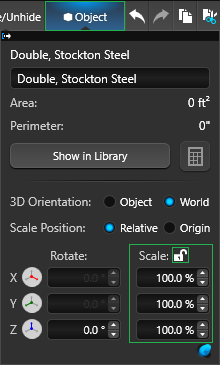
Non-Uniform Scale
Non-Uniform Scale lets you resize plants and items along a single axis instead of uniformly in all directions.
To enable non-uniform scaling, click the Lock icon (or press Alt + E), then adjust the object to scale it in just one direction.