Creating New Blocks
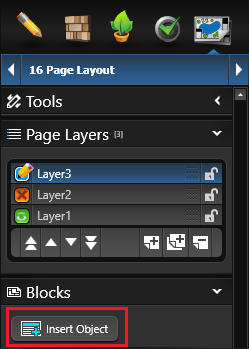
New object types are created by clicking the Insert New Object button located under the layer list in the panel.
Insert Object: Clicking the Insert New Object button will bring up the Insert New Object box.
Name: The name field allows you to give your newly inserted Object a name
Once you have inserted a new object type, you may move it with the move tool. The object will automatically snap to the edge of the page.
2D View: The 2D view is created with a view of your design in 2D. The shapes generated with 2D View may not be edited or selected. Hide/Unhide is disabled for the 2D View in Page Layout. 2D Views automatically update if you return to previous stages and edit the design. Selecting 2D View and pressing OK will bring up the 2D Drawing Options dialog box.
Here you can choose the layers you want to the newly inserted 2D view to display. You will see the layers from Construction Markup. You may select or deselect the layers you would like displayed. If you need to print your 2D view with a grid click on Print Grid and choose your Grid Spacing. You also have individual control over your symbol style on each individual 2D View. You may keep your default Symbol preference from design stages or force all landscaping and items to 2D Symbols or 3D Markers.
3D View: The 3D View creates a locked view of the project in 3D. More than a screenshot, the view can be adjusted once inserted. Double click on the 3D View to adjust the angle. Use left click or arrow keys to rotate the view, right click to zoom in and out, center mouse click to pan the view, and adjust the time of day with CTRL plus arrow keys, or N. Any Locations created in Photo Mode will appear as default angles to choose from when inserting the 3D View.
Image: Images of your 3D design and elements such as company logos may be added by selecting the 2D image option. This will bring up a file selection box. Graphic files in the .BMP, .PNG, .JPG, or .TGA formats may be added to your layout.
Logo: Your logo may be added by selecting the Logo option. If your logo is already added to the Project Information screen, it will automatically be selected. If no logo is present, this will bring up a file selection box. Graphic files in the .BMP, .PNG, .JPG, or .TGA formats may be added to your layout. The new logo will automatically be added to the Project Information screen.
Text Table: Add a table of text to construction sheets. Whether you need just a couple of lines or a large table, you can easily choose exactly how many columns and rows to add to the new table. Then, just grab the corner handles to resize it to fit the page.
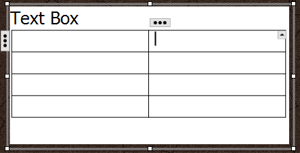 With a cell selected in the Text Table, click the 3 dots to add additional rows or columns.
Click the up arrow to select individual cell borders. Once selected, they can be adjusted on the Line tab under Object Styles.
To merge cells, press and hold Shift on the keyboard, then left click on additional cells to select them. Click the up arrow and then Merge Cells. Select any merged cell, then the up arrow to Unmerge cells.
Smart Data Block (Vip3D Only): The Smart Data Block allows you to display automatic detailed calculations for your projects. This includes Turn Downs, Step Risers, Dirt Displacement, Concrete Yardage, Rebar, and more. When you create the block you can choose which types of data will be displayed.
NOTE: Smart Data Blocks update automatically as you make changes to your design.
Pool Depth Profile (Pool Studio and Vip3D Only): The Pool Depth Profile creates a copy of the pool depth profile.
Plant Legend: The Plant Legend allows you to automatically display a symbol legend listing plants and trees inserted into your design. When you create the legend you can choose which types plants and trees will be displayed.
Item Legend: The Item Legend allows you to automatically display a symbol legend listing library items inserted into your design. When you create the legend you can choose which types of items will be displayed. This allows you to create separate legends for items, lighting, and irrigation.
Line Style Legend: The Line Style Legend allows you to automatically display the Line styles and assigned category.
Fill Style Legend: The Fill Style Legend allows you to automatically display the fill styles and assigned category.
Markup Symbol Legend: The Markup Symbol Legend allows you to automatically display markup symbols, quantity and name of symbol.
NOTE: All legends update automatically as you make changes to your design.
North Symbol: The North Symbol will automatically match the Orientation set in Stage 1: Project Information. To add a custom North Symbol, create the symbol in Construction Markup and save as a template to the Symbols > North Symbols category.
Object Settings
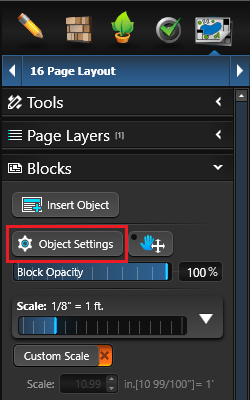
The Object Settings button allows you to change settings of an inserted object. Simply select an already created object with the move tool. Once the object is selected, click the Object Settings button.
You can edit the 2D View, 3D View, Smart Data Blocks, Plant Legends, Item Legends, Line Style Legends, Fill Style Legends and Markup Symbol Legends.
Editing the 2D View
The 2D Drawing Options box will come up and display a list of your markup categories. You select the Categories you would like to appear and can change other properties of the object.
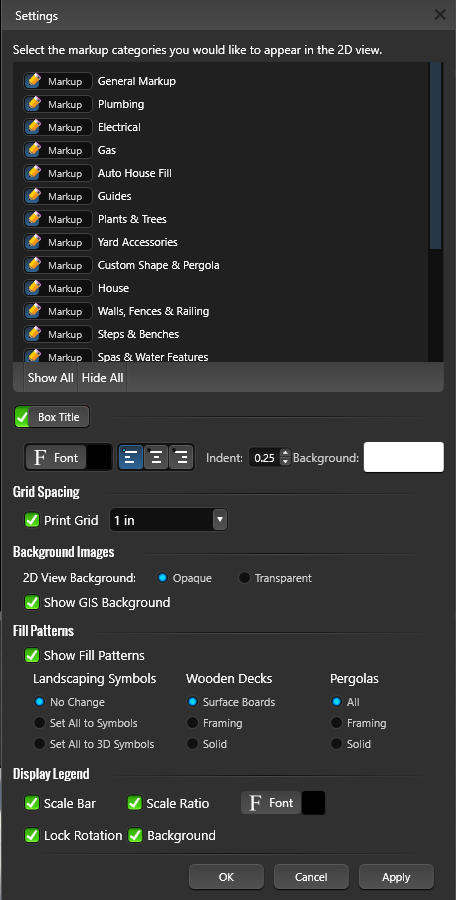 Markup Category Options:
- If the box next to the Category displays a Markup Pencil, it will use the Hide/Unhide settings from the previous stages.
- If the box displays a Green Eye, everything on that layer will appear.
- If the box displays a Red X, everything on that layer will be hidden.
Background Images Options:
- 2D View Background: Select Opaque to have a solid white background. Select Transparent to have remove the white background so the entire view inside the border is transparent.
- Show GIS: When checked, the GIS image will be displayed.
Fill Patterns Options:
- Show Fill Patterns: When checked, fill patterns will be displayed.
- Also set the appearance for Landscaping Symbols, Wooden Decks and Pergolas.
Display Legend Options:
- Show Scale Bar (Vip3D Only): When checked, a Scale bar for the 2D View will be displayed in the bottom right.
- Show Scale Ratio: When checked, the Scale for the 2D View will be displayed in the bottom right. Use the Font controls to the adjust the appearance of the Scale.
- Lock Rotation: When checked, the scale bar and ratio will remain locked in the bottom right corner when the 2D View is rotated.
- Background: When checked, the scale bar and ratio have a white background.
Press the Ok button when done.
Editing the Legends
The Plant Legend displays the symbol, quantity, common name, botanical name, and container size for plants and trees inserted into the design.
Changes to the Design: The legend lists the actual items inserted into your design. If changes are made to the design, the legend will automatically update item quantity and remove items that have been deleted.
Automatically Update Quantity based on Hide/Unhide Settings: With this box checked, the Legend does not display plants/trees hidden in earlier stages. Uncheck the box to display all plants/trees on the Legend, even if hidden in earlier stages.
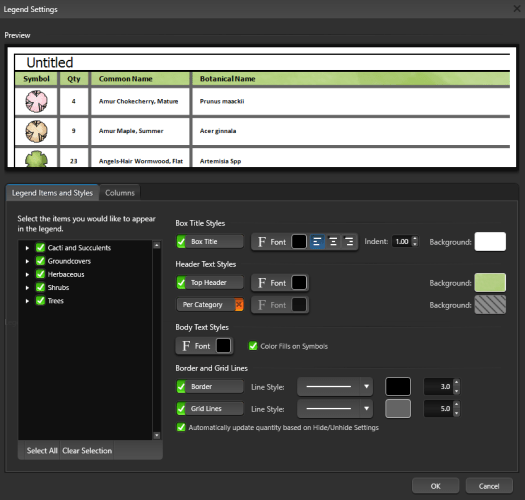
Manual Changes to the Legend: The information listed on the legend may also be changed manually. Simply left click on the item and it will become a text field you can edit. This allows you to enter the common names you use or change the quantity to reflect actual build amounts.

Once changed, a prompt will ask you to change other Callout Labels and other Legends to match. Click Yes to change all Callout Labels and Legends for the selected object, or click No to only alter the selected object.