
Add a blue checkmark to activate each of the controls.
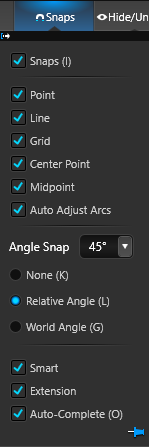 Snaps: Turn this option off to temporarily disable all snaps. When you turn snaps back on by re‑checking the box, your previous snap settings are automatically restored. (Hotkey: I)
Point: This will allow you to snap to all of the points on any shape in your project.
Line: This will allow you to snap to any edge of any shape in your project.
Grid: As you draw a shape, your lines and arcs will snap to the grid. This also affects the movement of shapes or objects as well.
Center Point: This will snap to the center point of any arc in your scene, where each radius line starts.
Midpoint: This will snap to the midpoint of any line or arc as you draw.
Auto Adjust Arcs: Controls how existing arcs behave when you edit them with the Move or Scale tools. When enabled, those tools preserve a smooth freeform arc; when disabled, moving an arc converts it to a straight line.
Snap Strength
You can customize the strength of your snapsin the Configuration Menu on the 2D Settings Tab.
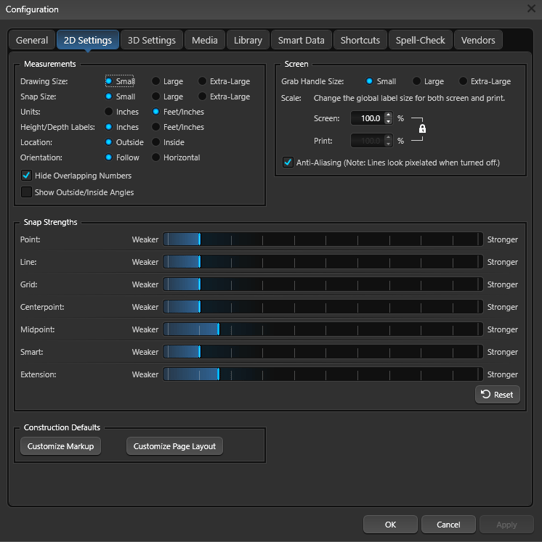
These sliders allow you to adjust the strength of your snaps. The higher the pixel number, the stronger the snap will be.
The pixel number represents the number of pixels away your cursor needs to be in order for the snap to take effect.
Angle Snap
Angle Snap allows for precise snapping at specific angles in 5° increments. With Angle Snap, you can easily align objects or elements with the grid or other objects in your project.
Choose an Angle Snap setting by clicking on the radio button.
-
None: This option will turn off angle snapping, which affects drawing shapes or rotating objects and shapes in your project. (Hotkey: K)
-
Relative Angle: With this option, as you draw a shape, lines and arcs will snap 45 degrees relative to the previous line or arc drawn. (Hotkey: L)
-
World Angle: With this option, as you draw a shape or rotate an object, it will snap to every 45 degrees globally. (Hotkey: G)
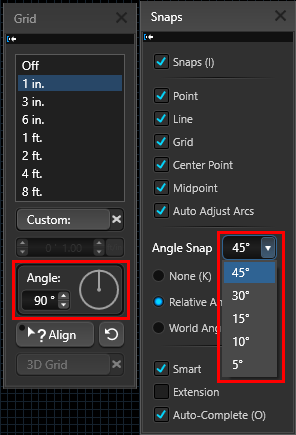
Angle Under Grid: The Grid Angle feature lets you set a custom rotation for the drawing grid. When you enable Align, select any line segment to rotate and the grid will realign to match it, making it easier to draw and edit angled elements or properties.
Align to Grid
With just a click of the Align to Grid button, you can now adjust the position of your line or shape to align automatically with the grid lines. This handy tool saves you time and ensures precision in your drawings, helping you make sure all elements are evenly spaced and aligned.
Smart Snap
Smart Snap automatically provides suggested snap points based on what you’re drawing, reducing guesswork and fine‑tuning. As you move your cursor near corners, midpoints, intersections, or alignments that are likely useful, Smart Snap highlights those locations so you can click once and lock onto them. This helps you place shapes, steps, and details faster and more accurately, keeps lines aligned and evenly spaced, and minimizes the need for manual adjustments after you draw.
Extension Snap
Extension Snap lets you snap to an implied point along a line’s projected path, as if the line continued beyond its endpoint.
This is useful for aligning or drawing shapes to where lines would meet or extend in your design.
Auto-Complete
Auto-complete gives you the power to draw shapes and then simply double click on the last point to complete the shape automatically. (Hotkey: O)
It works just like an automatic Outline tool: as you draw along an existing shape (like a step along a pool beam), a blue line will now appear. If you want to trace a portion of the autocomplete line, simply press and hold CTRL.