Personalize your designs by adding custom videos or images to outdoor TVs and projectors. Showcase their favorite team winning a championship or feature their own family footage to create a memorable, highly customized presentation.
Example of Custom Video Added to TV
Example of Custom Video Added to Projector
Requirements for Custom Videos:
- .MP4 format
- 480p, 720p, or 1080p videos work best.
- Ratio 16:9
- Suggested Bitrate: 4,000-8,000 kbps
Requirements for Custom Images:
- .PNG, .JPG, .BMP format
-
Keep the video at less than 100 MB. Any larger, and the video won’t be saved with your save file (which means that, if you share your save file, it won’t include your video).
-
Be aware that adding custom videos to TVs or projectors may increase video rendering times.
-
Please note that projector videos/images won't be reflected in ray-traced glass, metal, or water.
- Videos will not play sound.
Save a video or image on your computer that meets the requirements listed above.
In Stage 11: Plants & Items, insert a “TV On” from Accessories > Entertainment.
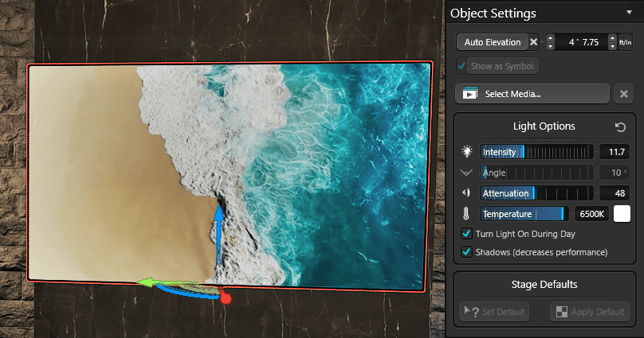
With the TV or projector selected in 3D, click “Select Media” in the right panel and choose the photo or video you want to display.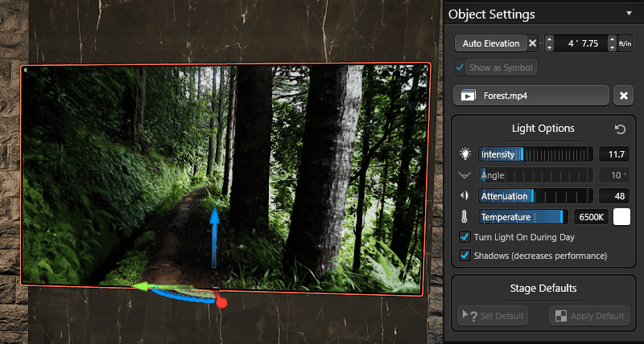
Where to Get Videos
Below are three ways to obtain videos:
1. Use YouTube Premium to download videos:
-
Sign in to YouTube Premium.
-
Choose a video and click the Download icon.
-
Select the download quality (720p is recommended).
2. Download videos from a stock video website:
- https://stock.adobe.com/video
- https://www.shutterstock.com/video
3. Create your own videos
- Render a design from Vip3D
- Record a video on you phone
How do you convert videos that are not .Mp4
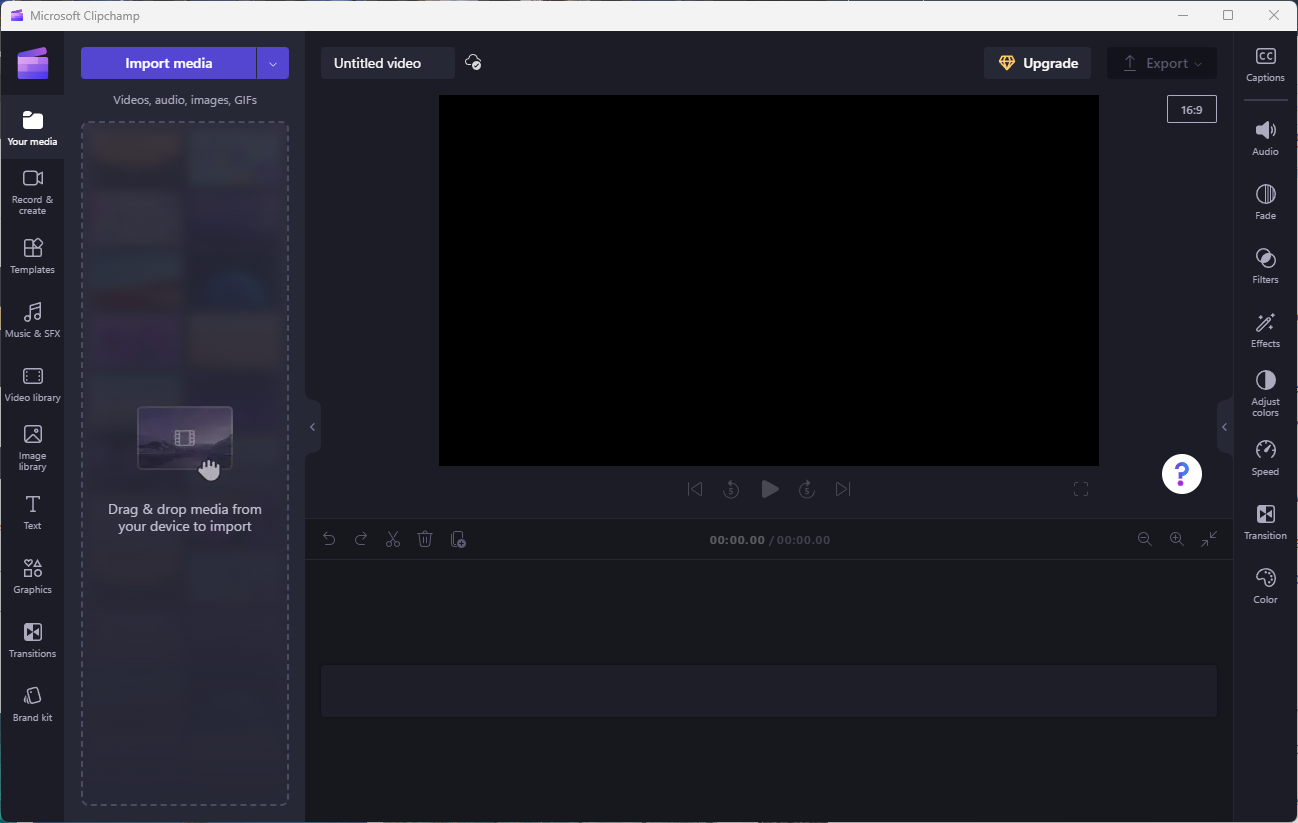
If you come across .MOV video files from various video services, which are not compatible, there's a simple solution. You can easily convert these files and other formats using Microsoft Clipchamp, a free video editor that works seamlessly with Windows 11.
-
Drag the video into Clipchamp
-
Click Export in the upper right.
-
Choose "720p"