
Library
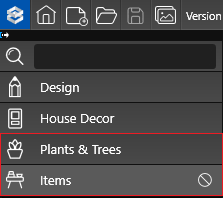
Plants and items can be found in the Library under the Plants & Trees tab and Items tab.
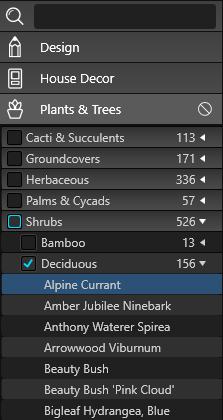 List View: The List View is organized into Category bars that you can expand or collapse as needed. The number shown on the right indicates how many options are available in that Category.
Click a Category name to expand or collapse it and display its Subcategories. Click the box next to a Category name to add a check mark and show preview images for every plant, tree, or item in that Category in the Thumbnails Panel.
To clear a selection, click the check mark next to the Category or Subcategory name. To clear all selections at once, click the Deselect button.
Insert plants, trees, or items by double‑clicking their name or thumbnail, or by using the Insert or Multi buttons at the bottom of the Thumbnails Panel.
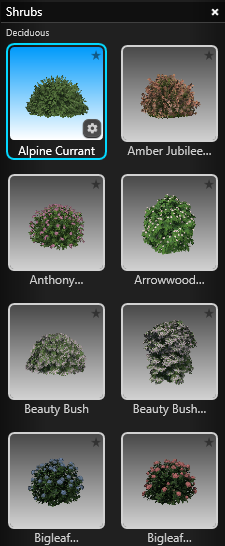
Thumbnail View: The Panel displays preview images for every plant, tree, or item that has a check mark next to its name in the List View.
Plants and items are grouped by Category, with Subcategories listed beneath each Category.
Resize the panel by hovering your cursor over its edge until it becomes a double arrow, then click and drag to adjust the width.
You can also change the thumbnail size by choosing the Small, Medium, or Large icons at the bottom of the Thumbnails Panel.

Matching: With a plant or item selected in the list, click this button to select every instance of that plant or item in the project, making it easy to quickly swap all of them for a different choice.
Replace: This button replaces the plant/tree or item you currently have selected in your viewport with the plant/tree or item selected in the library.
This command works well when combined with Matching found under Object Modification in the Panel. Combining both commands allows you to quickly exchange all the maple trees in your design for cedar trees.
Insert Button: This button will insert the currently selected plant/tree or item into the project one time.
Multi Button: This button allows you to insert as many copies of the item as you wish. Each time you left click, the currently selected item will be inserted.
To stop inserting copies of the item, right click or switch to the Move tool to reset your cursor. Multi is perfect for adding multiple plants and items to the design.
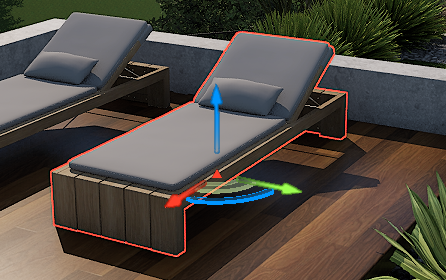
Moving Plants & Items in 3D
Learn more in Moving and Rotating Objects.
Object Modification
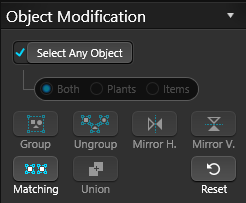 Select Any Object: Check this box to select objects regardless of the stage where they were created. Clear the box to limit selection to objects created in the current stage only.
Matching: Click to automatically select every item in the design that matches the currently selected item—for example, every pine tree in the project.
Reset: Click to return a selected plant, tree, or item to its original size and rotation.
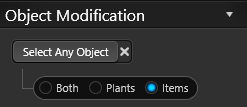
Select Any Object (Off): When "Select Any Object" is Off in the Plants & Items Stage, you have the flexibility to choose whether to select both plants and items or just plants or items individually.
This is especially helpful when you need to isolate landscape lights in a row of bushes. By setting the selection to only Items, you can use CTRL+click or marquee select to choose just the lights without accidentally selecting any bushes.
Object Settings
Object Settings provide specific settings for different types of objects. Certain objects, like Plants, Fire, or Water Features, have their own unique settings displayed in this section.
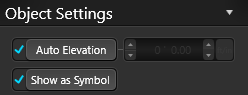 Auto Elevation On: With this box checked, a selected plant/tree or item will automatically snap to the surface underneath it. This means that objects will be set to the elevation of the ground or if placed on a surface like a raised planter, the height of the planter.
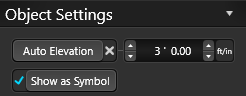 Auto Elevation Off: You can manually enter an elevation for a selected plant/tree or item here. Moving a plant/tree or item in 3D with the 3D gizmo will also set a manual elevation.
Show as Symbol: This toggle allows you to show an object as a 2D symbol instead of as a 3D marker. This also allows you to change how a plant/tree or item you have already placed into your design appears. Uncheck the box to show the selected landscaping as a 3D marker.
Plant Object Settings
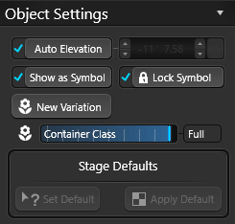 Lock Symbol: By default, the 2D symbols for plants and trees in the software remain fixed and do not rotate or scale. This means that even if you adjust the size or rotation of the 3D model of a plant or tree, the 2D symbol will not be affected.
This ensures that the 3D models can be customized to mimic the natural variations of real plants and trees, while the 2D symbols remain consistent and always match the symbol size and rotation in the landscape legend during the construction stage.
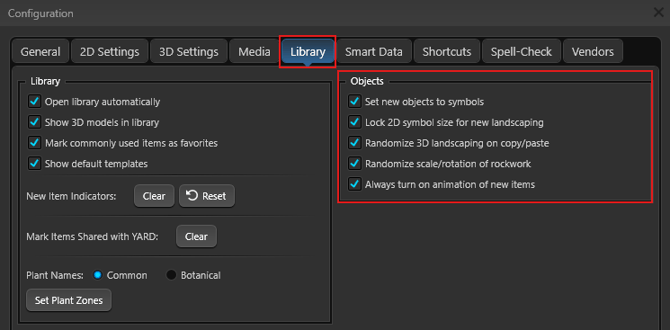
Turn "Lock Symbol" off to disable this feature to scale or rotate a specific symbol. This setting can be turned off for all plants and trees in the Configuration Panel > Library.
New Variation: This button will change the variation of a selected plant or tree. This also allows you to change the variation of a plant or tree you have already placed in your design.
Container Class: This slider allows you to change the container class of a selected plant. You can also change the container class of plants you have already placed in your design. The symbol for each container class can be set by using the Gear button on the plant thumbnail.
Light Object Settings
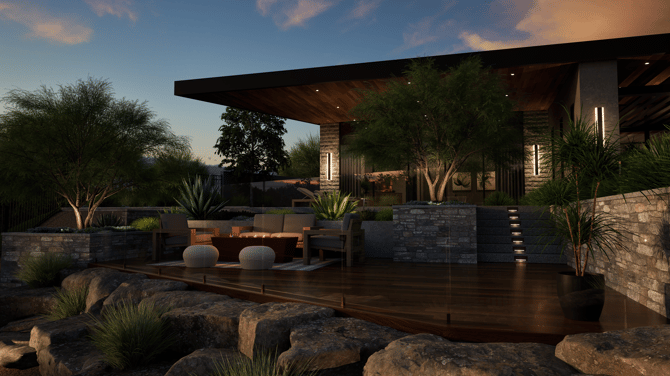
Lights in the Library are located in the Lights Category. This category includes interior and exterior lights as well as fixtures such as ceiling fans. Specialized lights such as pool lights are also found in this category.
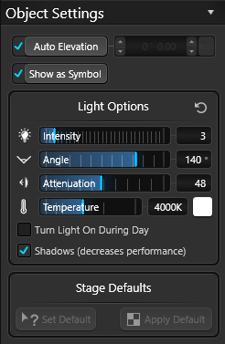 Intensity: The brightness of a light is determined by this measurement. If a light is meant to illuminate a large area, it may need to be more intense. However, if the light is intended for a small, cozy space, it may need to be dimmer.
Angle: You have the ability to adjust the angle of the light cast for spot or directional lights, such as a pool light. However, for point lights like a landscape path light, the light casts in all directions without a specific angle.
Attenuation: This refers to the range at which a light source can project its illumination. In certain situations, it is desirable for the light to only illuminate a foreground object, like a plant, without casting light on the wall behind it. To achieve this, you can lower the Attenuation of the light, ensuring that the light only reaches the plant and does not extend beyond it.
Temperature: Light color is influenced by temperature. Higher temperatures produce whiter light, while lower temperatures result in more orange light. Lower temperatures create a cozy and inviting atmosphere, making them ideal for spaces where you want to relax. On the other hand, bright white lights are perfect for workspaces where you need focused and clear illumination.
Light Color: To select a different light color, such as red or green, click on the color swatch located to the right of the temperature setting.
Turn Light On During Day: To keep this specific light object on during the day, check the box. By default, lights are programmed to turn on only at night.
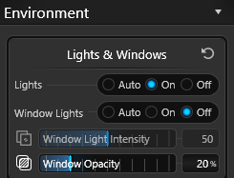 To have all light objects turn on during the day, you can choose the global setting in the Presentation Stage > Environment > Lights.
Lights in your design will remain on throughout the day.
Shadows: You can choose to enable or disable shadow casting for specific light sources. However, it is important to note that having too many shadow casting lights can lead to performance and stability issues, as well as lights flickering on and off as you move.
Visual Features
Visual Features can be found in the Library under Fire Elements and Water Elements. These categories contains fire, water features and water features with light.
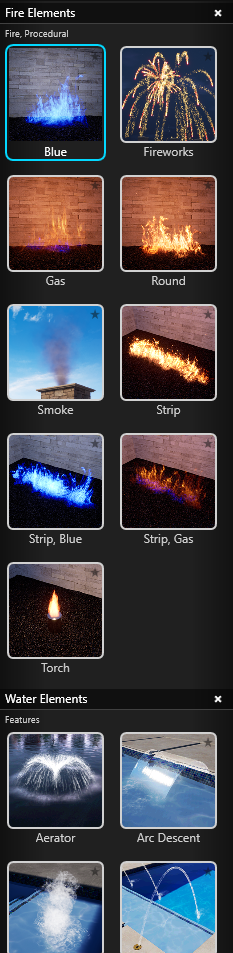 Most of the water effects such as Arc, Rain, Water Descents and Spillovers will automatically snap to the edge of the water feature as you insert them. Each of the effects will also conform to the shape of the water feature, bending around corners and curving around arcs.
As you increase the length of these water effects they will continue to conform to the shape of the water feature.
Some water effects may also be placed on other objects, such as house pieces and custom shapes, but they will not conform to the shape of those objects and will remain straight.
Each visual effect has its own unique options. When you select an effect from the library, you will see the specific options available for that effect under the Object Settings in the Panel.
You can change the settings for any effect you have already inserted by selecting the effect in your design and changing the options in the menu.
Aerator and Bubbler Options
Aerator Height: This box controls the distance that the water sprays up from the aerator.
Aerator Radius: This box controls the radius of the plume of water from the aerator.
Bubbler Height: This box controls the distance that water sprays up from the bubbler.
Bubbler Radius: This box controls the distance the water spreads out from the bubbler as it falls down.
Stop at Origin: This check box controls the flow of water. When the box is checked the water flow will fall and stop at the same height as where it starts, allowing for open space underneath. Unchecked, the water will fall until it hits the ground.
Arc, Rain, Descent, Waterfall Options
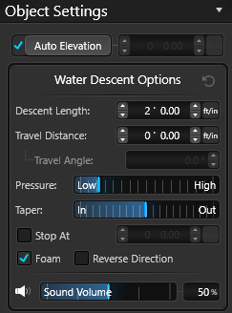 Length: This control allows you to set the length of a descent water effect, adjusting how wide or narrow it is.
Travel Distance: This control allows you to create a flat plane of water, before the water spills down. Perfect for design elements such as scuppers.
Travel Angle: When a value is set in Travel Distance, this control allows you to set the angle of the plane of water, before the water spills down.
Pressure: This slider adjusts the force at which water flows from a descent effect. Increasing the pressure will increase the distance the water flows out from the effect, while lowering the pressure will decrease the distance the water flows out from the effect, eventually reversing it.
Taper: This slider adjusts the angle at which the water tapers in or out from the water source.
Stop At: This check box controls the flow of water. When the box is checked the water flow will stop at the set elevation, such as splashing onto a solid surface. Unchecked, the water will fall until it hits the ground.
Foam: This check box controls the foam of the water. Unchecked to turn the foam off.
Reverse Direction: This check box causes the water flow to reverse direction. This is helpful if a water effect is facing the wrong direction.
Sound Volume: This slider controls the level of sound produced by the visual feature.
Other Water Feature Options
Angle: This control sets the selected water effect to a specific angle.
Edge Angle: This control allows you to set the slope of the dam wall for a spillover or edge water effect.
Edge Length: This control allows you to set the length of an edge water effect, adjusting how wide or narrow it is.
Water Flow: This check box turns the water flow of a water effect on or off. This allows you to show the dam wall clear of the water from the effect.
Procedural Fire Options
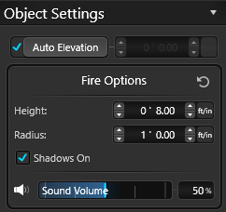 Height: This control adjusts the height of the fire effect.
Width or Radius: This control adjusts the radius of the base of the fire effect.
Length (for strip fires): This control adjusts the length of the procedural strip fire.
Sound Volume: Adjust the Fire sound volume from the selected fire.
%20copy.webp?width=670&height=377&name=Vip3D%20Version%204%20(39)%20copy.webp)
Searching for Objects in the Library
To search for a plant/tree or item, simply type the name of the desired object into the Search bar and press the "Search" button. The results of the search will appear below.
Single words or groups of words may be entered into the Search bar. The search feature will search plant names and categories.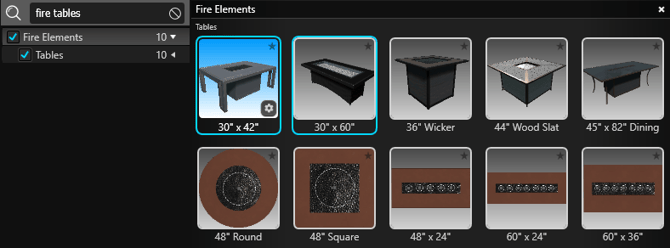
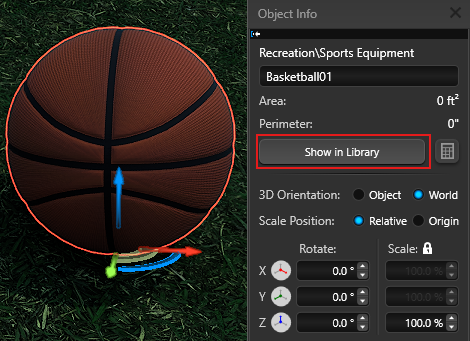
Show in Library: To find an object already inserted in the design go to Object Info and press the Show In Library button.
Library Configuration Settings
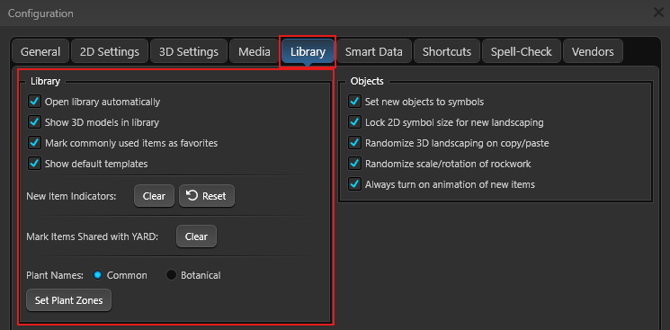
To open your Library configuration, press F7 on your keyboard, and navigate to the Library tab.
To learn more about each setting: See Configuration.
Assign Image Callout Label
With the Callout Tool, you can also add photos to plants and site objects. This is a great way to share your plant palette and project details with your clients.
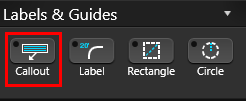
1. Select the Plant, Tree or Library object, then Callout under Labels & Guides.
2. Next under Object Settings, check the box for Image.
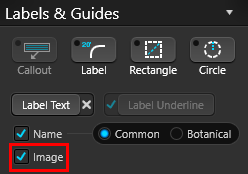
3. Double click on the image to access the menu, or click Edit in the Library.
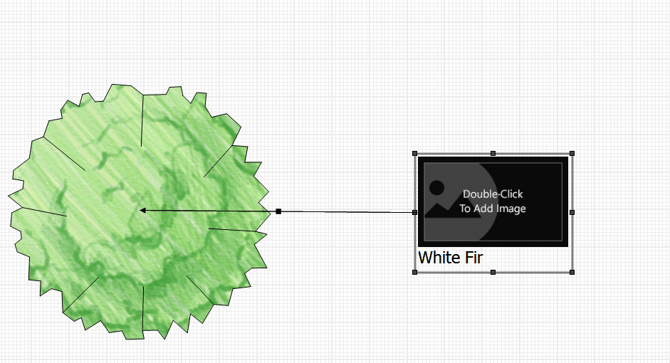
Assign the Image:
You can select images saved on your PC, click Online Search to look for new images, or drag and drop images from your browser.
- Browse PC: Clicking on Browse PC will bring up a file selection box. Graphic files in the .BMP, .PNG, .JPG, or .TGA formats may be used.
- Online Search: Clicking on Online Search will open your default browser, and search for the Botanical name or Template Name of the object. The image can be saved to the PC, or dragged into the “Drag image here” area in the object menu.
NOTE: You may need to view the original image before dragging. Click to view the larger preview of the image in your browser, then View Image. Some images cannot be dragged or saved, depending on the website’s security settings.
Assign Custom Symbols & Fills
You can assign any of the over 1,000 landscaping symbols in the program or create custom landscaping symbols to plants and trees.
Select the plant or tree in the Library and press the Gear button in the bottom right corner of the thumbnail.
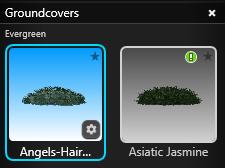
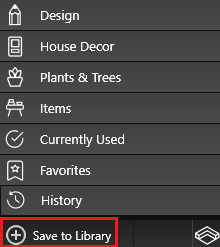
To create a new model, select the plant or tree in the Library or inserted in the project and press the Save to Library button.
Edit Plant/Item Name
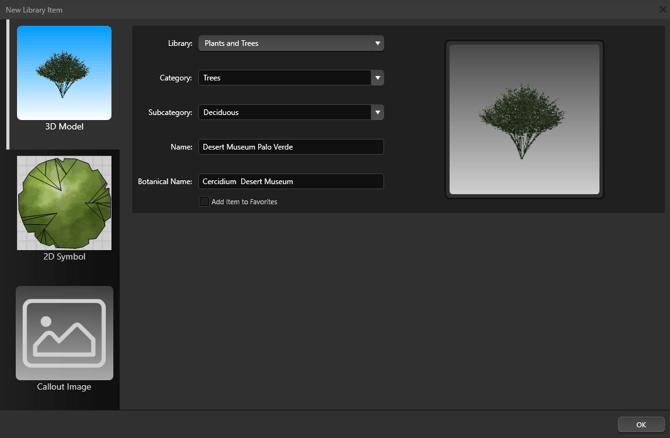
An image of the 3D model, 2D symbol of the object and Callout Image will appear on the left.
Name: Provide the category, subcategory, name, and if applicable, the botanical name for the plant or tree.
Edit Plant/Item 2D Symbol
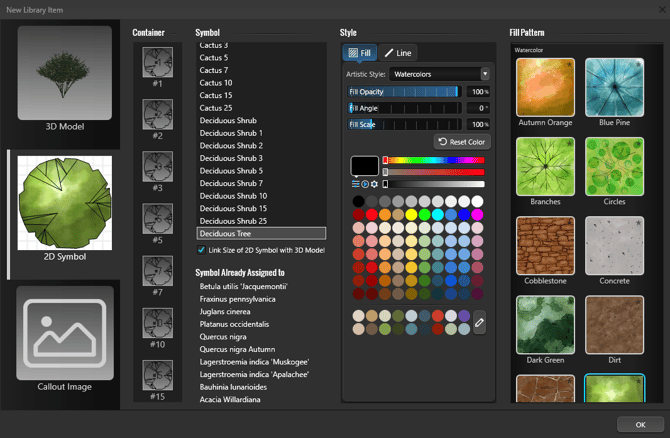
Container (for plant and tree objects): Select the Container Class you would like to set. You can set an unique symbol, fill and/or line style for each Container Class.
2D Symbol: A list of available symbols will appear next to the six container classes. Left click on the symbol name to select it.
Symbol Already Assigned to: This list will tell you what other plants currently use the symbol.
Fill Style: Assign a basic or artistic fill to the symbol. You can also customize the line style and color.
Reset Color: Press the Reset All button to reset the plant to the defaults.
Ok: Press Ok to save your selections and update the symbol.
Creating Your Own Symbols: You can create your own symbols in the Construction Markup Stage. In Markup, draw the symbol using the line and arc tools. Save the symbol to the Construction Library by clicking the Plant Symbol radio button at the top of the Create New Template box. Your custom symbol will now appear in the list in the Edit Object box.
Note: You must save your symbol as a Plant Symbol for it to appear in the list under Edit Object.
Resetting Symbols: You may set the symbol for any item back to the Vip3D default by pressing the Reset button in Edit Object. This will set all symbols and container class symbols for the item back to the program defaults.
Edit Plant/Item Callout Image
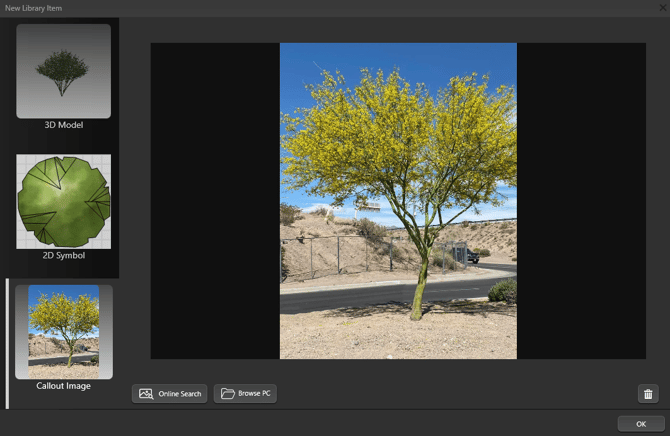
Assign the Image: You can select images saved on your PC, click Online Search to look for new images, or drag and drop images from your browser.
Online Search: Clicking on Online Search will open your default browser, and search for the Botanical name or Template Name of the object. The image can be saved to the PC, or dragged into the “Drag image here” area in the object menu.
Browse PC: Clicking on Browse PC will bring up a file selection box. Graphic files in the .BMP, .PNG, .JPG, or .TGA formats may be used.