
Getting Started
- A Nvidia RTX Video Card is required (preferably RTX 3070 or greater).
- Your Nvidia RTX video drivers must be updated. Install the "GeForce Experience" to keep your drivers up to date.
Turn On Ray Tracing
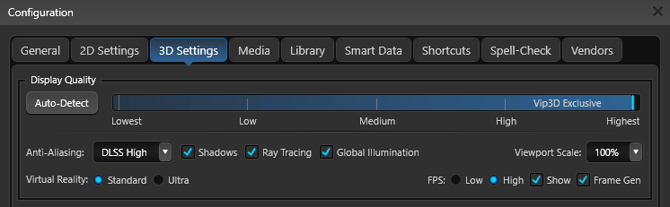
- Head to the Configuration Menu (Press F7).
- Click the 3D Settings tab.
- Activate Ray Tracing.
- Note that the minimum Display Quality required is Medium.
-
Ensure Anti-Aliasing DLSS is ON. DLSS (Deep Learning Super Sampling) uses artificial intelligence to greatly improve the speed of 3D rendering.
Benefits
Incredible Reflections
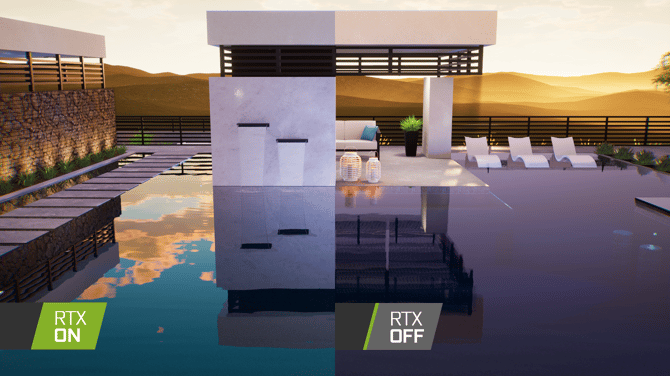
Water Refraction
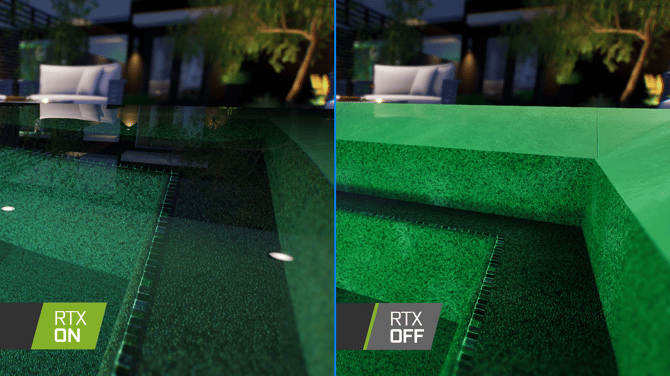
Crisp Shadows
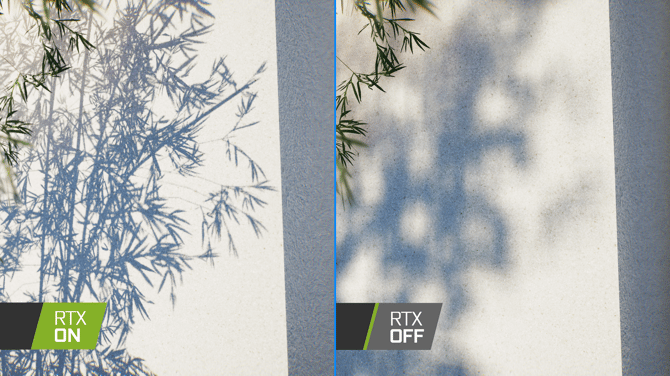
Translucent Water & Glass
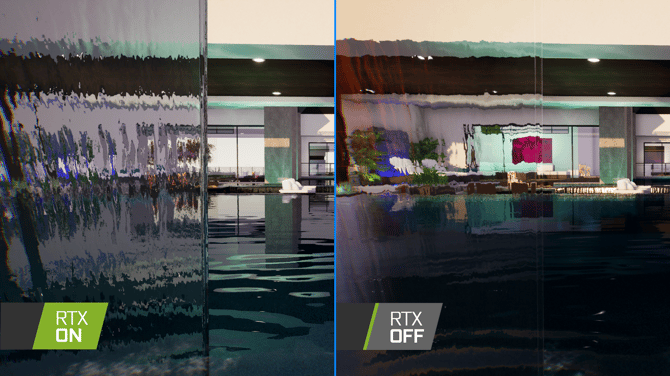
Watch the Ray Tracing Comparison Video
Limitations
Real-time Ray Tracing, like any other cutting-edge technology, currently has some limitations.
Designing with Ray Tracing ON can slow down your designs in certain situations, like being close to several reflective objects that are reflecting 60+ lights in your design. Some effects will not appear in reflections or through glass.
Use Fast Mode while designing to avoid any potential slowdowns.

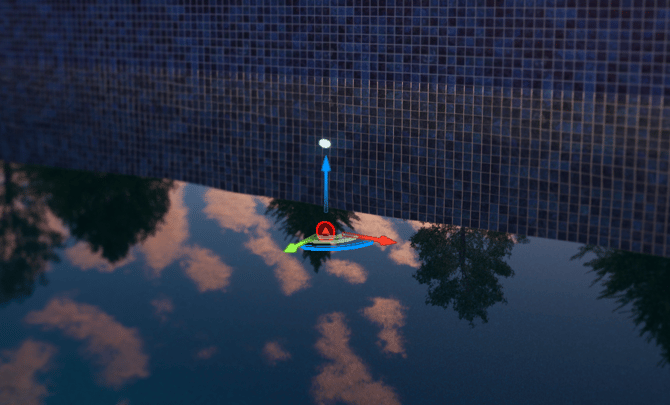
Selecting Objects Under Water
Because water refracts light, selecting underwater objects will behave differently with Ray Tracing enabled. This is not a software limitation, but it is important to be aware of.
In the example below, refraction makes the pool light appear much higher than its true position. The red selection highlight shows the light’s actual location on the pool wall. This effect becomes more pronounced at low viewing angles. For accurate selection, move your camera view underwater before clicking on underwater objects.
Troubleshooting
Ray Tracing in Configuration is Grayed Out
- Ensure you have a Nvidia RTX Video Card and the video card drivers are up to date.
- If you are connected to an external display on a laptop, ensure Windows sets your secondary monitor as the primary monitor.
- Follow the steps on How To Improve Your Software Performance to ensure the software is utilizing the proper graphics card.
Ray Tracing Slows Down My Computer
- We recommend a RTX 3070 or greater video card.
- Lights impact ray tracing performance. Ensure there are no unnecessary lights in your design.
- While designing, use Fast Mode to temporarily disable ray tracing and other hardware-intensive tasks.
- Ensure your computer meets the Recommended Specifications.
NOTE: Ray Tracing will perform noticeably better on a desktop computer over a laptop.
Ray Tracing Causes Graphical Issues
- Update your Nvidia RTX video drivers.
- Install the "GeForce Experience" to keep your drivers up to date.