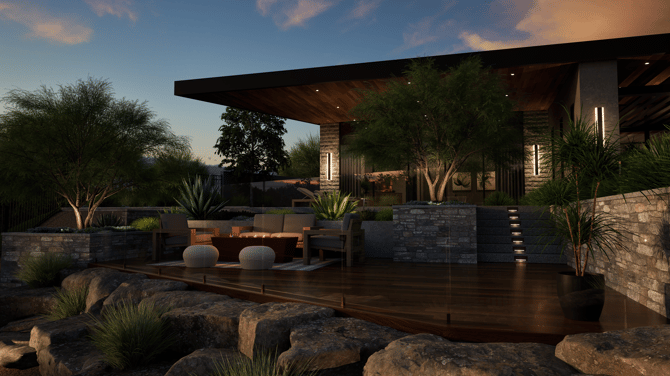
PATH TRACING
Elevate the quality of your images with Path Tracing, which accurately simulates complex lighting and delivers high-quality, physically accurate results.
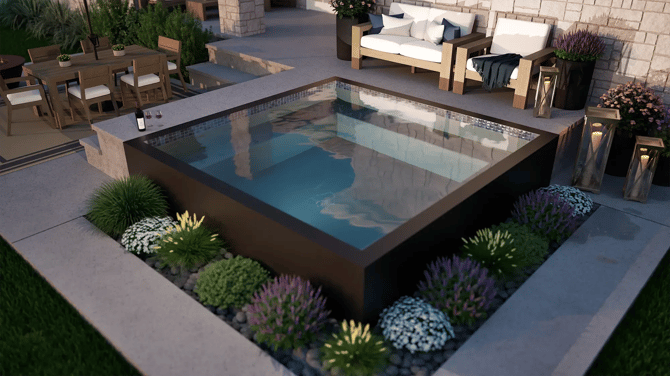
DYNAMIC WATER
Watch the water move in the pool and spa from spillovers and water features! Even control the intensity of the water surface to enhance the water ripples.
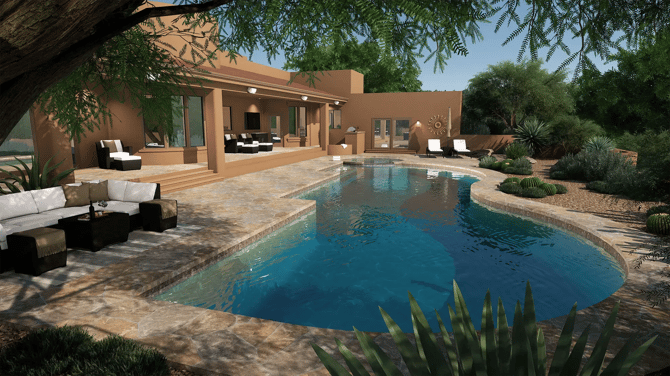
3D GRASS
Ground your viewer to the reality of your design with 3D grass, which makes expansive lawns, gardens, and parks look even more impressive.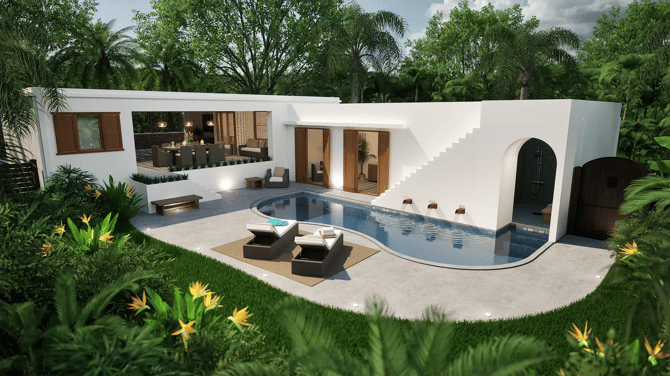
In Stage 11: Materials, double-click the Grass to select it. With the Grass selected, Turn On 3D Grass in the Panel under Object Settings.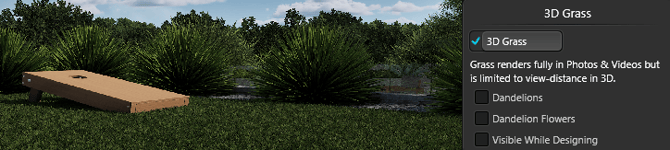
To preview 3D Grass in the Design Stages, check Visible While Designing. In Design Stages, 3D Grass appears as a preview with limited view distance; it will render at full quality in Photos and Videos.
LIGHT CONTROLS
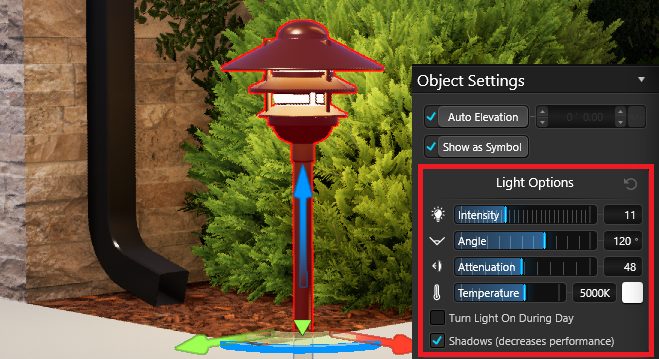
Lighting Controls offer you limitless opportunities to create the perfect light settings for your client’s design. With the freedom to light each project exactly as you envision it, you can easily customize each light by adjusting the Attenuation, Light Angle, Intensity, Temperature, and Color.
The Point and Spot staging lights even include physically accurate falloff, making your lighting extraordinarily, beautifully realistic.
STRIP LIGHTS
Strategically place strip lights to add ambiance and depth to your design. They're the perfect way to highlight the pool, outdoor kitchen, and bar areas.
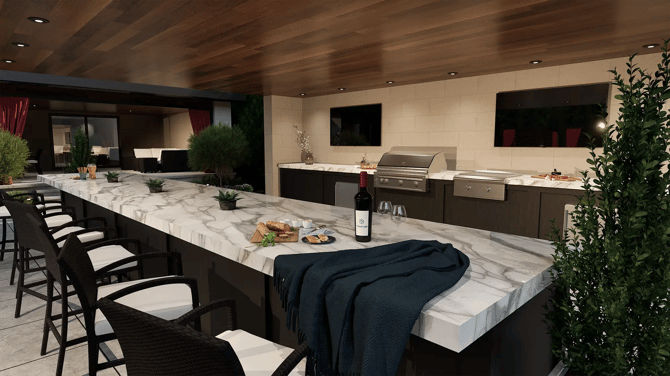
Found in the Library in the Lights Category, Strip Lights snap to the edge of the pools, spas, outdoor kitchens and retaining walls.
Double-click the preview thumbnail or left-click the Insert button. When you move your cursor to the viewport, the strip light will follow until you left-click to place it.
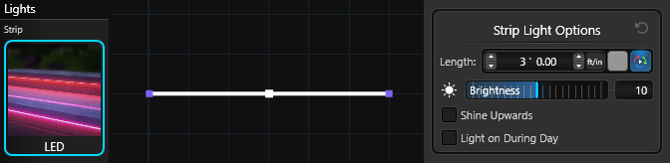
Once the strip light is placed, you can customize the strip light by using Strip Light Options under Object Settings in the Panel.
The strip light will also conform to the shape, bending around corners and curving around arcs.
WINDOW LIGHTS
Give your client’s house an upgrade by turning on the automatic window lights.
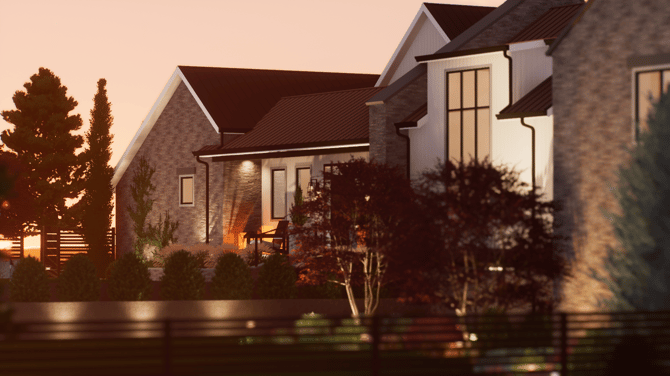
In Stage 11: Materials, apply a Window Glass to the windows. As soon as you enter Dusk or Night, the house becomes an inviting centerpiece as the light glows through the windows.
CUSTOM MEDIA
Screens offer yet another avenue to surprise and delight your clients. You can add your (or their!) videos and still images to TVs and projectors.
PROFESSIONAL CAMERA CONTROLS
In Stage 14: Presentation, add another level of professionalism to your photos and videos with exclusive camera controls.
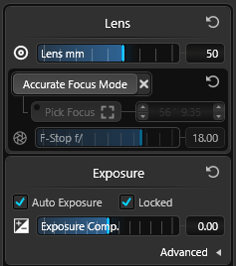
Camera Lens (mm): Use the slider to set a focal length between 15 mm and 150 mm, or type a specific value in that range for finer control.
Accurate Focus Mode: Turn on Accurate Focus Mode to define exactly where the camera should focus. Adjust the F-stop to control how much blur appears in the out-of-focus areas.
With Accurate Focus Mode enabled, you can fine-tune focal distance and F-stop for pixel-perfect focus in your photos and videos.
The preview shows exactly how your media will look, and your focus settings remain active even if you turn Accurate Focus Mode off. Note: Leaving Accurate Focus Mode enabled can reduce performance.
For more information about camera and filter controls, see Presentation.
FAST MODE 
Turn on Fast Mode to design complex projects faster by disabling rendering effects and shadows in Design Stages.
FAST MODE ON:
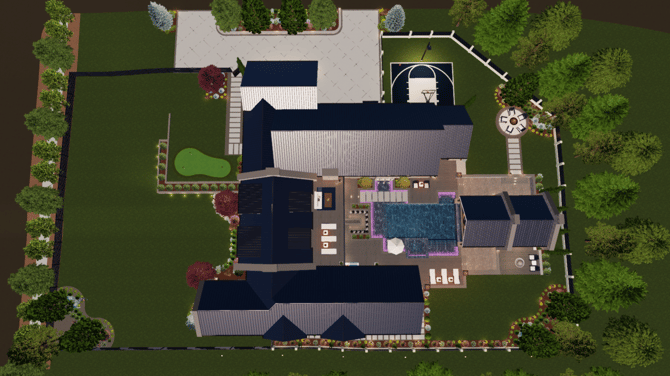
FAST MODE OFF:
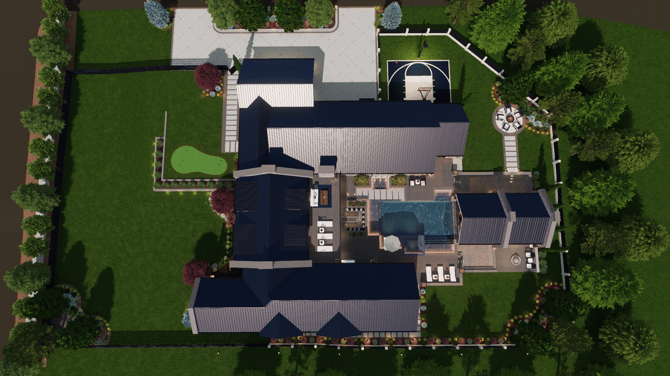
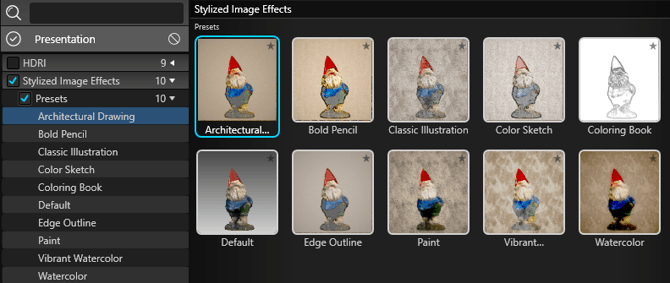
IMAGE FILTERS
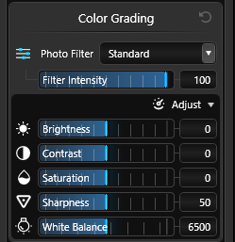
In Photo and Video mode, use image filters to change the look of your presentations and elevate the overall aesthetic of your photos and videos.
Create vibrant color, subtle shadow, and crisp detail by applying and adjusting filters.
Dial in your preferred look with the Filter Intensity slider.
Fine-tune each filter further using the Brightness, Contrast, and Saturation sliders.