
Hardscape Video:
Hardscape - Stage Options
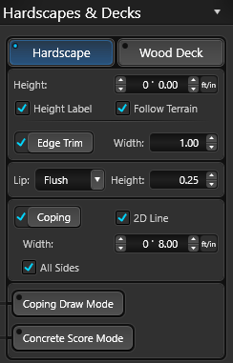 Height: This option allows the hardscape height to be adjusted.
Height Label: By default, the height of the hardscape is displayed. Uncheck this option to hide this label in the 2D view and in Construction.
Follow Terrain: This control allows the hardscape to follow the slope of the terrain. This is perfect for creating a driveway.
When Off, the hardscape will cut through the terrain and create a level surface.
Edge Trim: Toggle allows you to add or remove edge trim to the corners of a selected hardscape.
Edge Trim Width: This control allows you to adjust the overall width of the edge trim. The limit ranges from 1" to 6".
Lip Style: Here you can select the lip style for your coping from the drop-down menu.
Lip Height: This control allows the height of the Lip to be adjusted from 1″ to 6″. Default is 3″.
Coping: Toggle allows you to add or remove coping to the outside edge of the selected hardscape.
2D Line: By default, the coping line of the hardscape is displayed. Uncheck this option to hide the coping in the 2D view and in Construction.
Coping Width: This control allows you to adjust the overall width of the coping. The limit ranges from 1" to 24". Coping options will change the way Area is calculated on Hardscapes. Under Object Properties, the Hardscape area and the Coping area values will both be displayed.
All Sides: Toggle adds coping to all sides of Hardscape. When off, coping will not appear on sides where a taller shape appears, or where terrain is above the hardscape.
Coping Draw Mode: This mode allows you to use the drawing tools to create exactly the coping you need on your hardscape. Learn more in our Custom Coping Article.
Concrete Score Mode: The mode allows you to use the drawing tools to add expansion joints and scoring lines. Learn more in our Concrete Score Lines and Expansion Joints Article.
Generate Railing on Deck: This control allows you to automatically add a railing to the selected hardscape.
Wood Deck Video:
Wood Deck - Stage Options
It’s easy to adjust wood decks by simply double-clicking on any given section. As you double-click on each section of the deck, the panel menu updates to show you the options available. You can also click on the various sections in the panel menu to switch as well.
Fascia and Skirt
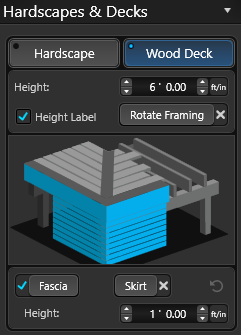
Height: This option allows the wood deck height to be adjusted.
Height Label: Check this option to display this label in the 2D view and in Construction.
Rotate Framing: Toggle allows you to rotate the framing.
Fascia: Toggle allows you to add or remove fascia.
Skirt: Toggle allows you to add or remove the skirt.
Fascia Height: This control allows you to adjust the overall height of the fascia.
Surface Boards
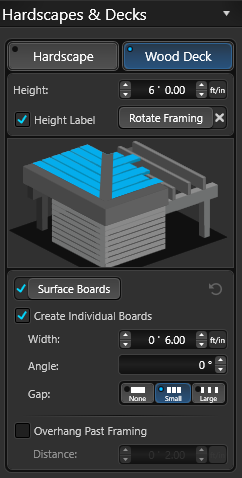 Surface Boards: Toggle allows you to add or remove surface boards.
Create Individual Boards: By default, the wood deck will have individual surface boards. Uncheck this option to create one solid board.
Width: This control allows the width of the boards to be adjusted.
Angle: This control allows the angle of the boards to be adjusted from 0° to 180°. Or select the Rotate Tool from the Panel.
Gap: This control allows the gap between the boards to be adjusted. Choose from None, Small or Large.
Overhang Past Framing: By default, the surface boards stop at the frame. Check this option for the surface boards to overhang the frame.
Distance: This control allows you to adjust the overhang distance of the surface boards.
NOTE: Surface boards must be active to automatically Generate Railing on a Deck.
Miters and Dividers
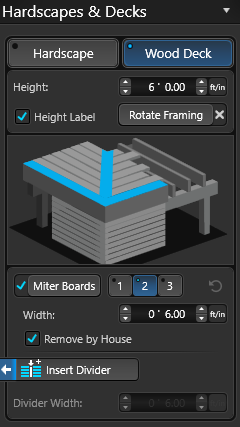
Miter Boards: This control allows mitered boards to be added around the wood deck. Choose from None, One, Two, or Three.
Width: This control allows the width of the boards to be adjusted.
Remove by House: By default, the mitered boards are removed where the wood deck touches the house. Uncheck this option for the mitered boards to appear next to the house.
Insert Divider: This control allows you to automatically add a divider board.
Note: This control is only available while in 2D.
Divider Width: This control allows the width of the divider boards to be adjusted.
Posts
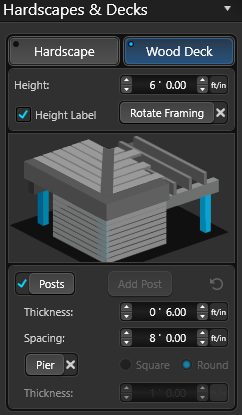 Posts: Toggle allows you to add or remove posts.
Add Post: This button allows you to add a post.
Thickness: This control allows the thickness of the posts to be adjusted.
Spacing: This control allows the spacing of the support posts to be adjusted.
Pier: Check this option to add posts to the piers. By default, the piers are round, but you can also choose the square option.
Pier Thickness: This control allows the thickness of the piers to be adjusted.
Framing
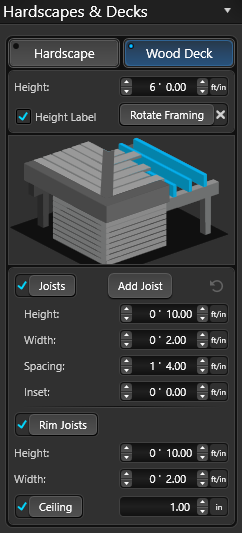 Joists: Toggle allows you to add or remove joists.
Add Joist: This button allows you to add a joist.
Height: This control allows the joist height to be adjusted.
Width: This control allows the joist thickness to be adjusted.
Spacing: This control allows the joist spacing to be adjusted.
Inset: This control allows the inset of the support beam into the framing to be adjusted.
Rim Joist: Toggle allows you to add or remove rim joists to a selected wood deck.
Height: This control allows the height of the rim joists to be adjusted.
Width: This control allows the thickness of the rim joists to be adjusted.
Ceiling: Toggle allows you to add or remove a ceiling below the rim joists and set the height.
Beams
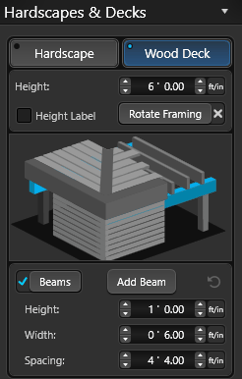 Beams: Toggle allows you to add or remove beams to a selected wood deck.
Add Beam: This button allows you to add a beam.
Height: This control allows the height of the support beams to be adjusted.
Width: This control allows the thickness of the support beams to be adjusted.
Spacing: This control allows the spacing of the beams to be adjusted.
Staircase System
To add a staircase, left-click the Create Staircase button. When you move your cursor to the viewport, the staircase will follow until you left-click to place it.
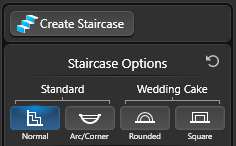 Staircases will automatically snap to any shape they touch.
By default, the staircase will be 4 feet wide and extend from the top of the shape down to the next lowest platform or ground.
4 Staircase Types are Available:
-
Normal: Straight stairs feature a single linear flight
-
Arc/Corner: Straight stairs that start on an arc or corner
-
Rounded: Round wedding cake style steps
-
Square: Square wedding cake style steps
Once the staircase is placed, you can customize the Staircase by using Staircase Options below.
Staircase Options
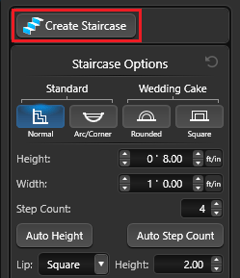 Height: This control allows you to adjust the height (or rise) of each step.
Width: This control allows you to adjust the depth (or width) of each step. To adjust the width of an individual step, use the point on the center of the step.
Step Count: This control allows you to adjust the number of individual steps in the selected staircase.
Auto Height: This button automatically adjusts the staircase to fit. For example, if Auto Height is selected and you change the height of each step, the step count will automatically change.
Auto Step Count: This button automatically adjusts the number of steps in the selected staircase. For example, if Auto Step Count is selected and you change the depth of each step, the step count will automatically change.
Lip Style: This control allows you to adjust the style and height of the cap/lip of each step.
Stringers: This toggle allows you to choose between Solid, Cut Out or Skirt.
Risers: This toggle allows you to add or remove risers to the staircase. Note: Risers must be turned On for the Insert Step Lights button to be available.
Solid Stringers
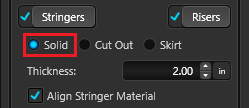 Thickness: This control allows you to adjust the thickness of the stringer.
Align Stringer Material: This toggle allows you to set the material to follow the angle of the stringer.
Cut Out Stringers
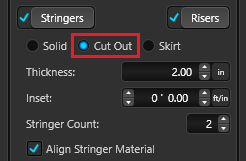 Thickness: This control allows you to adjust the thickness of the stringer.
Inset: This control allows you to adjust the inset of the stringer.
String Count: This control allows you to adjust the number of stringers.
Solid Stringers
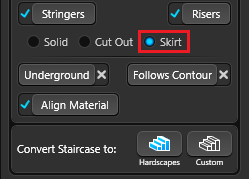
When set to Solid, you have the option to convert the staircase to a hardscape or custom shape.
Convert To Hardscapes: This button allows you to convert the staircase to editable shapes in the Hardscapes & Decks Stage.
Convert To Custom: This control allows you to convert the staircase to editable shapes in the Custom Shapes Stage.
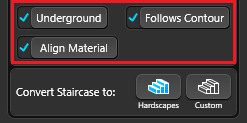 Underground: Use this toggle to reverse the staircase direction. This is especially helpful when creating stairs that lead down to lower levels, such as a sunken seating area.
Follows Contour: This toggle allows you to follow the contour of an arc around a shape, for shapes like spiral staircases.
Use the Follows Contour option to create curved staircases and automatic pool steps. See Create Spiral and Curved Stairs/Steps.
Align Material: This toggle allows you to set the material to follow the direction of the treads.
Insert Step Lights
When Risers are active on the staircase, the Insert Step Lights button is available.
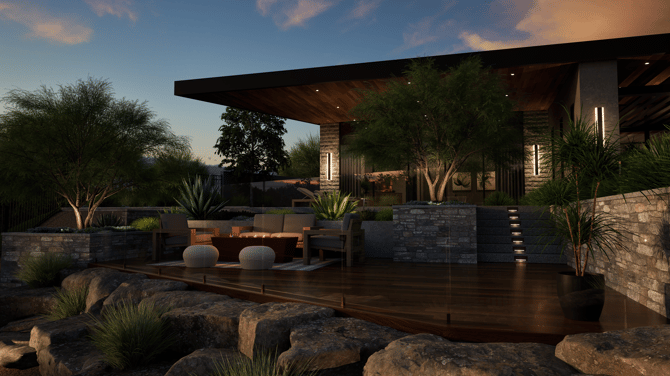
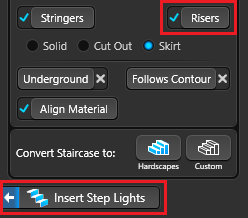 When you left‑click the Insert Step Lights button, a step light is automatically placed on each riser.
After they are inserted, all step lights are selected, making it easy to switch to a different style.
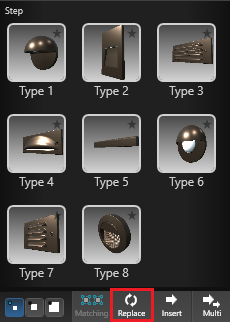 To change the light style, select your preferred step light in the Library and left‑click Replace.
Library
The Library contains a collection of pre-designed deck templates. These templates are categorized under Wood Decks.
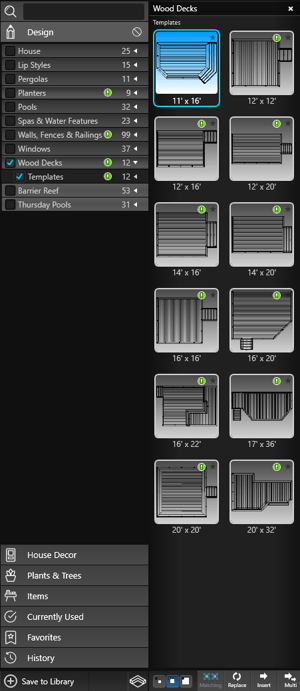
To use a deck template, simply select the one you want to insert. You can either click the Insert button or double left-click on the template image.
Once you have selected a template, it will follow your cursor as you move it around the viewport. When you're ready to place the template, just left-click.
If you have created your own deck templates, you can also save them for future use by clicking the Save to Library button.
By saving templates to your library, you save time when working on future designs.